Welcome to the puzzlepiece documentation!

Puzzlepiece is a GUI-forward Python framework for automating experimental setups. It focuses on abstracting communication with a piece of hardware into standard inputs, outputs, and actions. It then automatically generates GUI components for them, minimising the need for boilerplate code. Puzzlepiece allows the user to bring diverse controls into a single, consolidated application, and automate their interaction or experiment using a unified API, either by making custom Pieces, or through a built-in script language, or with Interactive Python.
You can install puzzlepiece using pip:
pip install puzzlepiece
Check out https://pzp-hardware.readthedocs.io for the hardware integrations already available on puzzlepiece!
Feature showcase
Bring Pieces together to construct modular applications
Pieces are single GUI modules that a Puzzle is constructed out of:
import puzzlepiece as pzp
from puzzlepiece.pieces import random_number, plotter

# Create a Qt app, the backend that will run our GUI
app = pzp.QApp()

# Create the Puzzle, the main window of the application
puzzle = pzp.Puzzle(name="Basic example")

# Add Pieces to the Puzzle
puzzle.add_piece("random", random_number.Piece, row=0, column=0)
puzzle.add_piece("plotter", plotter.Piece, 0, 1, param_defaults={
   "param": "random:number" # specify a default value for a param
})

# Show the Puzzle window and execute the Qt application
puzzle.show()
app.exec()

Create your own Pieces
Use decorators on methods that set/get parameters and perform actions to rapidly get a standardised UI and API for your automation or task:
import puzzlepiece as pzp
import random

class RandomNumber(pzp.Piece):
   def define_params(self):
      # A 'setter' function sets a value, like a laser's power.
      # We define it here and give it a param-defining decorator:
      @pzp.param.spinbox(self, "seed", 0)
      def seed(self, value):
         random.seed(value)

      # A 'getter' function returns a value, like a powermeter's reading
      # We define it here and give it a param-defining decorator:
      @pzp.param.readout(self, "number")
      def random_number(self):
         return random.randint(0, 10)

   def define_actions(self):
      # Sometimes an action is needed, like homing a moving stage.
      # Here we make a function and decorate it with an action-defining decorator
      @pzp.action.define(self, "Welcome!")
      def print_something(self):
         print("Hello world!")
You can then add this Piece to any Puzzle and display it:
app = pzp.QApp()
puzzle = pzp.Puzzle(name="Number generator")
puzzle.add_piece("random_number", RandomNumber, 0, 0)
puzzle.show()
app.exec()

Pieces can interact through the Puzzle
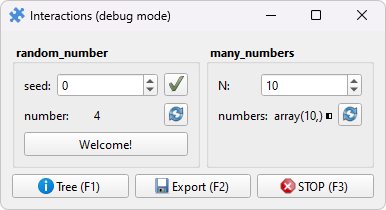
One Puzzle can contain multiple Pieces, enabling them to interact with each other. For example, we can create a Piece that accesses the RandomNumber generator created above:
class ManyNumbers(pzp.Piece):
   def define_params(self):
      # This param does not require a setter or getter, so it gets
      # None as its argument
      pzp.param.spinbox(self, "N", 10)(None)

      # This param contains a numpy array
      @pzp.param.array(self, 'numbers')
      def numbers(self):
         values = []
         # Check this Piece's own param to see how many numbers the user wants
         N = self["N"].get_value()
         # Set the seed on the other Piece
         # by accessing "piece_name:param_name" on self.puzzle
         self.puzzle["random_number:seed"].set_value(0)
         for i in range(N):
            # Get param values from the other Piece
            values.append(self.puzzle["random_number:number"].get_value())
         return values
Once we add both Pieces to a Puzzle they can interact with each other:
app = pzp.QApp()
puzzle = pzp.Puzzle(name="Interactions")
puzzle.add_piece("random_number", RandomNumber, 0, 0)
puzzle.add_piece("many_numbers", ManyNumbers, 0, 1)
puzzle.show()
app.exec()
Running in Jupyter Lab/Notebook
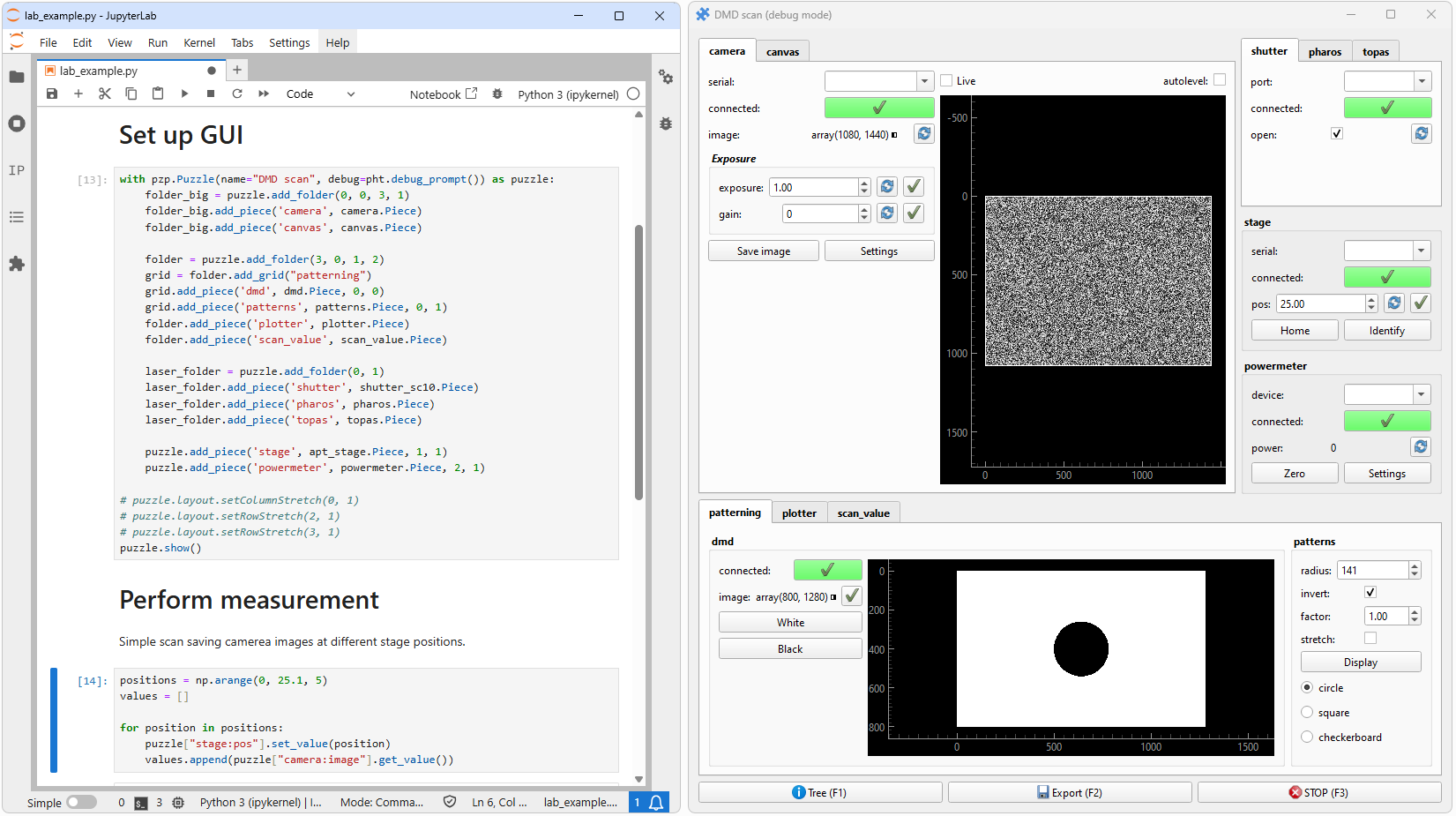
Running puzzlepiece in an IPython environment gives you the powerful ability to interact with your automation application both through the GUI and through code. Two steps are necessary to enable this. First, the Qt integration has to be enabled by running this magic in any cell:
%gui qt
Second, the Qt application is constructed for you by the IPython kernel, so you don’t have to make it or execute it yourself. Instead simply say:
puzzle = pzp.Puzzle(name="Basic example")
puzzle.add_piece("random_number", RandomNumber, 0, 0)
puzzle.show()
Now you can interact with the GUI directly, or by running Python code in other cells, for example:
values = []
for i in range(10):
   values.append(puzzle["random_number:number"].get_value())
You can use this to create interactive Notebooks for your lab sessions, where the GUI is used for alignment and inspection, and the Notebook records your notes and the measurement code!
Note that there is a fix in ipykernel 6.29.3 to how exceptions are handled when %gui qt is turned on,
you may want to update ipykernel if your cells are not running after an exception is raised.
Next steps
The Tutorial is a great place to start - have a look or run it yourself to learn interactively!
Some example Pieces are available on GitHub, and you can have a look at https://github.com/jdranczewski/pzp-hardware/ to see how to develop hardware integrations. The full source code of this library is available at https://github.com/jdranczewski/puzzlepiece.
This documentation is reasonably extensive, and meant as a good way to familiarise yourself with puzzlepiece too - have a look at the API section of the table of contents below.